🚀 实战进阶:将 ComfyUI 封装为 AI 视频生成网站 (FastAPI + WebUI)
背景: 在上一篇文章中,我们已经在 Ubuntu 服务器 (RTX 4090) 上成功部署了 ComfyUI 并跑通了 Wan2.1 文生视频工作流。 但 ComfyUI 原生界面太复杂,不适合直接丢给最终用户使用。
目标: 我们要构建一个“业务网关”,包含:
- 后端 (FastAPI):封装 ComfyUI 的 API,将复杂的 ComfyUI 工作流封装为干净、标准的 RESTful API,供上游服务 (如RuoYi) 调用。
- 运行环境: 独立 Python
venv(fastapi_venv) - 前端 (HTML/JS):提供一个清爽的 Web 界面,用户只需输入提示词即可生成视频。
- 依赖服务: ComfyUI AI 引擎 (必须在
http://127.0.0.1:8188运行) - 架构:用户访问 -> FastAPI (9000端口) -> 内部转发 -> ComfyUI (8188端口)。
🛠️ 第一步:准备独立环境
为了保证环境纯净,我们不要复用 ComfyUI 的 venv,而是为 FastAPI 创建一个独立的虚拟环境。
-
创建并激活环境
Bash
1
2
3
cd ~/My-ComfyUI
python3 -m venv fastapi_venv
source fastapi_venv/bin/activate
-
安装依赖
Bash
1
pip install "fastapi[all]" uvicorn requests -i https://pypi.tuna.tsinghua.edu.cn/simple
📂 第二步:导出 API 工作流 (“菜谱”)
FastAPI 需要知道如何“指挥” ComfyUI。我们需要将工作流导出为 JSON 模板。
- 打开 ComfyUI 界面 (
http://服务器IP:8188)。 - 加载 T2V 工作流:确保这是您调试通过的、包含 “Save Video” 节点的工作流。
- 注意:必须有 Save Video 节点,否则 FastAPI 无法捕获结果文件。
- 导出 API 格式:
- 点击右侧菜单的 “Save (API format)” 按钮。
- 下载 JSON 文件。
- 上传服务器:
- 将文件重命名为
t2v_api.json。 - 上传到服务器的
~/My-ComfyUI/目录下。
- 将文件重命名为
💻 第三步:编写后端代码 (api_server.py)
在 ~/My-ComfyUI/ 目录下创建 api_server.py。 这段代码实现了:
- 静态文件托管:让用户访问
http://IP:9000就能看到网页。 - API 转发:接收前端请求,注入提示词,调用 ComfyUI。
- 结果解析:智能解析 ComfyUI 复杂的输出路径,返回真实 URL。
Python
1
2
3
4
5
6
7
8
9
10
11
12
13
14
15
16
17
18
19
20
21
22
23
24
25
26
27
28
29
30
31
32
33
34
35
36
37
38
39
40
41
42
43
44
45
46
47
48
49
50
51
52
53
54
55
56
57
58
59
60
61
62
63
64
65
66
67
68
69
70
71
72
73
74
75
76
77
78
79
80
81
82
83
84
85
86
87
88
89
90
91
92
93
94
95
96
97
98
99
100
101
102
103
104
105
106
107
108
109
110
111
112
113
114
115
116
117
118
119
120
121
122
123
124
125
126
127
128
129
130
131
132
133
134
135
136
137
138
139
140
141
142
143
144
145
146
147
148
149
150
151
152
153
154
155
156
157
158
159
160
161
162
163
164
165
166
167
168
169
170
171
172
173
174
175
176
177
178
179
180
181
182
183
184
185
186
187
188
189
190
import uvicorn
import requests
import json
import uuid
from fastapi import FastAPI
from pydantic import BaseModel
from fastapi.middleware.cors import CORSMiddleware # 允许 RuoYi 前端跨域

# (!!!) 新增下面这一行导入 (!!!)
from fastapi.staticfiles import StaticFiles
from fastapi.responses import HTMLResponse

app = FastAPI()

# --- CORS 跨域设置 ---
# 允许所有来源 (生产环境您应该改成 RuoYi 的前端地址)
app.add_middleware(
    CORSMiddleware,
    allow_origins=["*"],
    allow_credentials=True,
    allow_methods=["*"],
    allow_headers=["*"],
)

# (!!!) 新增以下代码 (!!!)

# 1. 挂载静态文件目录,这样前端才能访问 static 里的资源
app.mount("/static", StaticFiles(directory="static"), name="static")

# 2. 添加根路由,直接返回 index.html
@app.get("/", response_class=HTMLResponse)
async def read_root():
    with open("static/index.html", "r", encoding="utf-8") as f:
        return f.read()


# --- ComfyUI 配置 ---
COMFYUI_URL = "http://127.0.0.1:8188"
# (!!!) 新增此行 (!!!)
# 请将 [YOUR_SERVER_IP] 替换为您的公网 IP 或域名
PUBLIC_FACING_URL = "http://127.0.0.1:8188" # 返回给 RuoYi 时使用
# 启动时加载 API 工作流模板
try:
    with open("text_to_video_wan.json", "r", encoding="utf-8") as f:
        API_WORKFLOW_TEMPLATE = json.load(f)
    print("text_to_video_wan 加载成功。")
except FileNotFoundError:
    print("错误:text_to_video_wan.json 未找到!")
    API_WORKFLOW_TEMPLATE = None

# --- Pydantic 模型定义 ---
class T2VRequest(BaseModel):
    prompt: str
    negative_prompt: str = "low quality, worst quality, bad quality"

# --- 辅助函数:定位提示词节点 ---
def find_prompt_node_id(workflow_template):
    """在工作流 JSON 中自动查找 CLIP Text Encode 节点的 ID"""
    for node_id, node_data in workflow_template.items():
        if node_data.get("class_type") == "CLIP Text Encode (Simple)":
            # 假设第一个找到的是我们的目标
            return node_id, "positive" # "positive" 是该节点的输入字段名
        if node_data.get("class_type") == "CLIPTextEncode":
            # 兼容 ComfyUI 原生节点名
            return node_id, "text"
    return None, None # 如果找不到

# 动态查找 Positive 提示词节点的 ID 和字段
POSITIVE_NODE_ID, POSITIVE_FIELD_NAME = find_prompt_node_id(API_WORKFLOW_TEMPLATE)
if POSITIVE_NODE_ID:
    print(f"自动定位到 Positive 提示词节点 ID: {POSITIVE_NODE_ID}, 字段: {POSITIVE_FIELD_NAME}")
else:
    print("警告:无法自动定位 Positive 提示词节点!")


# --- API 端点 ---

@app.post("/api/v1/generate-video")
def queue_generation(request: T2VRequest):
    """
    1. 接收 RuoYi 的请求,排队任务
    2. 返回任务 ID
    """
    if not API_WORKFLOW_TEMPLATE:
        return {"error": "服务器工作流模板未加载"}, 500

    if not POSITIVE_NODE_ID:
        return {"error": "服务器工作流配置错误,找不到提示词节点"}, 500

    # 1. 复制模板并注入提示词
    workflow = API_WORKFLOW_TEMPLATE.copy()
    workflow[POSITIVE_NODE_ID]["inputs"][POSITIVE_FIELD_NAME] = request.prompt

    # (可选) 注入负面提示词 (需要您自己找到负面节点的 ID)
    # workflow["NEGATIVE_NODE_ID"]["inputs"]["text"] = request.negative_prompt

    # 2. 准备 payload
    client_id = str(uuid.uuid4())
    payload = {"prompt": workflow, "client_id": client_id}

    # 3. 调用 ComfyUI 的 /prompt 接口
    try:
        response = requests.post(f"{COMFYUI_URL}/prompt", json=payload)
        response.raise_for_status()
        data = response.json()

        if 'prompt_id' not in data:
            return {"error": "ComfyUI 未返回 prompt_id", "details": data}, 500

        return {
            "status": "queued",
            "task_id": data['prompt_id']
        }

    except requests.RequestException as e:
        return {"error": f"调用 ComfyUI 失败: {str(e)}"}, 503


@app.get("/api/v1/status/{task_id}")
def get_task_status(task_id: str):
    """
    1. 接收 RuoYi 的轮询请求
    2. 检查 ComfyUI 的 /history 接口
    3. (最终修正版) 查找 'outputs' -> 'node' -> 'images' -> list -> 'filename' & 'subfolder'
    """
    try:
        # 1. 调用 ComfyUI 的 /history 接口
        response = requests.get(f"{COMFYUI_URL}/history/{task_id}")
        response.raise_for_status()
        data = response.json()

        # 2. 检查 history
        if task_id not in data:
            # 任务还在队列中,尚未开始执行
            return {"status": "pending"}

        history = data[task_id]

        # 3. 检查是否有错误
        if 'status' in history and history['status'].get('exception'):
            return {"status": "error", "message": history['status']['exception'][1]}

        # 4. 检查是否已完成
        if 'outputs' in history:
            outputs = history['outputs']
            video_files = []

            # 遍历所有节点的输出 (outputs.values() 会返回 "50": {...} 里的内容)
            for node_output in outputs.values():

                # 这是我们从您的 JSON 中找到的精确路径
                if 'images' in node_output:
                    for image_data in node_output['images']:
                        # 确保这是一个已保存的 "output" 类型文件
                        if image_data.get('type') == 'output':
                            filename = image_data.get('filename')
                            subfolder = image_data.get('subfolder')

                            if filename:
                                # 构建 ComfyUI /view 接口能识别的 URL
                                video_url = f"{PUBLIC_FACING_URL}/view?filename={filename}&type=output"

                                # 如果有子目录,必须加上 subfolder 参数
                                if subfolder:
                                    video_url += f"&subfolder={subfolder}"

                                video_files.append(video_url)

            if video_files:
                # 去重,以防万一
                unique_video_files = list(set(video_files))
                return {
                    "status": "complete",
                    "video_urls": unique_video_files
                }
            else:
                # 如果还是没找到 (几乎不可能了),返回一个错误
                return {"status": "complete_no_files_found_in_history_FINAL"}

        # 5. 如果都对不上,说明还在运行
        return {"status": "running"}

    except requests.RequestException as e:
        return {"error": f"调用 ComfyUI 失败: {str(e)}"}, 503


if __name__ == "__main__":
    print("启动 FastAPI 服务器在 0.0.0.0:9000")
    uvicorn.run(app, host="0.0.0.0", port=9000)
关键配置项 (api_server.py)
在 api_server.py 文件的顶部,有两个关键配置项需要您根据环境修改:
COMFYUI_URL- 用途: FastAPI 内部调用 ComfyUI 引擎的地址。
- 值:
http://127.0.0.1:8188 - 备注: 必须使用
127.0.0.1,确保服务间走内网通信,效率最高。
PUBLIC_FACING_URL- 用途: 在
GET /status/{task_id}接口返回给调用方 (RuoYi) 的 URL 中,用于拼接视频地址。 - 值:
http://[YOUR_SERVER_IP]:8188或https://[YOUR_DOMAIN.COM] - 备注: 这里必须填写服务器的公网 IP 或域名,否则 RuoYi 前端将无法访问视频。
- 用途: 在
🎨 第四步:编写前端页面 (static/index.html)
- 创建目录:
mkdir -p ~/My-ComfyUI/static - 创建文件:
nano ~/My-ComfyUI/static/index.html - 粘贴以下极简风格的代码:
HTML
1
2
3
4
5
6
7
8
9
10
11
12
13
14
15
16
17
18
19
20
21
22
23
24
25
26
27
28
29
30
31
32
33
34
35
36
37
38
39
40
41
42
43
44
45
46
47
48
49
50
51
52
53
54
55
56
57
58
59
60
61
62
63
64
65
66
67
68
69
70
71
72
73
74
75
76
77
78
79
80
81
82
83
84
85
86
87
88
89
90
91
92
93
94
95
96
97
98
99
100
101
102
103
104
105
106
107
108
109
110
111
112
113
114
115
116
117
118
119
120
121
122
123
124
125
126
127
128
129
130
131
132
133
134
135
136
137
138
139
140
141
142
143
144
145
146
147
148
149
150
151
152
153
154
155
156
157
158
159
160
<!DOCTYPE html>
<html lang="zh-CN">
<head>
    <meta charset="UTF-8">
    <meta name="viewport" content="width=device-width, initial-scale=1.0">
    <title>Wan2.1 视频生成工坊</title>
    <style>
        :root { --primary: #2563eb; --bg: #f8fafc; --card: #ffffff; }
        body { font-family: 'Segoe UI', sans-serif; background: var(--bg); color: #1e293b; display: flex; justify-content: center; padding: 40px 20px; }
        .container { width: 100%; max-width: 600px; background: var(--card); padding: 30px; border-radius: 16px; box-shadow: 0 10px 25px rgba(0,0,0,0.05); }
        h1 { margin-top: 0; font-size: 24px; color: #0f172a; text-align: center; margin-bottom: 30px; }

        .form-group { margin-bottom: 20px; }
        label { display: block; margin-bottom: 8px; font-weight: 600; font-size: 14px; }
        textarea { width: 100%; height: 100px; padding: 12px; border: 2px solid #e2e8f0; border-radius: 8px; font-size: 16px; resize: vertical; transition: border 0.2s; box-sizing: border-box;}
        textarea:focus { border-color: var(--primary); outline: none; }

        button { width: 100%; padding: 14px; background: var(--primary); color: white; border: none; border-radius: 8px; font-size: 16px; font-weight: 600; cursor: pointer; transition: opacity 0.2s; }
        button:hover { opacity: 0.9; }
        button:disabled { background: #94a3b8; cursor: not-allowed; }

        .status-box { margin-top: 20px; padding: 15px; background: #f1f5f9; border-radius: 8px; font-size: 14px; display: none; }
        .status-box.active { display: block; }
        .loader { display: inline-block; width: 12px; height: 12px; border: 2px solid #64748b; border-radius: 50%; border-top-color: transparent; animation: spin 1s linear infinite; margin-right: 8px; }
        @keyframes spin { to { transform: rotate(360deg); } }

        .video-result { margin-top: 20px; display: none; }
        video { width: 100%; border-radius: 8px; box-shadow: 0 4px 6px -1px rgba(0, 0, 0, 0.1); }
        .download-link { display: block; text-align: center; margin-top: 10px; color: var(--primary); text-decoration: none; }
    </style>
</head>
<body>

<div class="container">
    <h1>🎬 Wan2.1 文生视频工坊</h1>

    <div class="form-group">
        <label for="prompt">提示词 (Prompt)</label>
        <textarea id="prompt" placeholder="例如:An astronaut walking on the moon, cinematic lighting, 4k">An astronaut walking on the moon</textarea>
    </div>

    <button id="generateBtn" onclick="startGeneration()">✨ 开始生成视频</button>

    <div id="statusBox" class="status-box">
        <span class="loader" id="loader"></span>
        <span id="statusText">准备就绪</span>
    </div>

    <div id="videoContainer" class="video-result">
        <label>生成结果:</label>
        <video id="videoPlayer" controls loop autoplay muted></video>
        <a id="downloadLink" href="#" target="_blank" class="download-link">下载视频</a>
    </div>
</div>

<script>
    // 这里填写您的 FastAPI 地址 (如果就在当前页面访问,留空或者是相对路径即可)
    // 由于我们是同源托管,直接用相对路径 "/api/v1"
    const API_BASE = "/api/v1";

    let checkInterval = null;

    async function startGeneration() {
        const prompt = document.getElementById('prompt').value;
        if (!prompt) return alert("请输入提示词!");

        // UI 重置
        const btn = document.getElementById('generateBtn');
        const statusBox = document.getElementById('statusBox');
        const statusText = document.getElementById('statusText');
        const videoContainer = document.getElementById('videoContainer');
        const loader = document.getElementById('loader');

        btn.disabled = true;
        btn.innerText = "生成中...";
        statusBox.classList.add('active');
        videoContainer.style.display = 'none';
        loader.style.display = 'inline-block';
        statusText.innerText = "正在提交任务...";

        try {
            // 1. 提交任务
            const res = await fetch(`${API_BASE}/generate-video`, {
                method: 'POST',
                headers: { 'Content-Type': 'application/json' },
                body: JSON.stringify({ prompt: prompt })
            });

            const data = await res.json();
            if (data.error) throw new Error(data.error);

            const taskId = data.task_id;
            statusText.innerText = `任务已提交 (ID: ${taskId.slice(0,8)}...),正在排队...`;

            // 2. 开始轮询
            checkInterval = setInterval(() => checkStatus(taskId), 3000);

        } catch (e) {
            showError(e.message);
        }
    }

    async function checkStatus(taskId) {
        const statusText = document.getElementById('statusText');

        try {
            const res = await fetch(`${API_BASE}/status/${taskId}`);
            const data = await res.json();

            if (data.status === 'running') {
                statusText.innerText = "🚀 AI 正在努力生成中... (这可能需要几十秒)";
            } else if (data.status === 'pending') {
                statusText.innerText = "⏳ 正在排队等待 GPU 资源...";
            } else if (data.status === 'complete') {
                clearInterval(checkInterval);
                showSuccess(data.video_urls[0]);
            } else if (data.status === 'error') {
                clearInterval(checkInterval);
                showError(data.message || "生成失败");
            }
        } catch (e) {
            clearInterval(checkInterval);
            showError("网络连接错误");
        }
    }

    function showSuccess(url) {
        const btn = document.getElementById('generateBtn');
        const statusText = document.getElementById('statusText');
        const loader = document.getElementById('loader');
        const videoContainer = document.getElementById('videoContainer');
        const videoPlayer = document.getElementById('videoPlayer');
        const downloadLink = document.getElementById('downloadLink');

        btn.disabled = false;
        btn.innerText = "✨ 再生成一个";
        loader.style.display = 'none';
        statusText.innerText = "✅ 生成完成!";

        videoPlayer.src = url;
        downloadLink.href = url;
        videoContainer.style.display = 'block';
    }

    function showError(msg) {
        const btn = document.getElementById('generateBtn');
        const statusText = document.getElementById('statusText');
        const loader = document.getElementById('loader');

        clearInterval(checkInterval);
        btn.disabled = false;
        btn.innerText = "重试";
        loader.style.display = 'none';
        statusText.innerText = "❌ 错误: " + msg;
    }
</script>

</body>
</html>
整体文件结构
服务部署在 ~/My-ComfyUI 目录下:
Bash
1
2
3
4
5
6
7
8
~/My-ComfyUI/
├── api_server.py           # (核心) FastAPI 服务的主代码
├── t2v_api.json            # (核心) ComfyUI 导出的 API 格式工作流 "菜谱"
├── fastapi_venv/           # (环境) FastAPI 专用的 Python 虚拟环境
├── ComfyUI/                # (依赖) ComfyUI 引擎的完整目录
├── static/                 # (前端) FastAPI前端页面
└── venv/                   # (环境) ComfyUI 专用的 Python 虚拟环境
🚀 第五步:部署与运行
整体文件结构
Bash
1
2
3
4
5
6
7
8
~/My-ComfyUI/
├── api_server.py           # (核心) FastAPI 服务的主代码
├── t2v_api.json            # (核心) ComfyUI 导出的 API 格式工作流 "菜谱"
├── fastapi_venv/           # (环境) FastAPI 专用的 Python 虚拟环境
├── ComfyUI/                # (依赖) ComfyUI 引擎的完整目录
├── static/                 # (前端) FastAPI前端页面
└── venv/                   # (环境) ComfyUI 专用的 Python 虚拟环境
此服务与 ComfyUI 引擎一样,也需要使用 screen 在后台持久化运行。
-
进入 Screen 会话
Bash
1
screen -S fastapi
-
启动服务
Bash
1
2
3
cd ~/My-ComfyUI
source fastapi_venv/bin/activate  # 别忘了激活环境
python api_server.py
-
停止 / 重启服务 (最常用)
您需要更新代码 (如 api_server.py) 或工作流 (如 t2v_api.json) 时,必须重启此服务。
-
“重连”到
fastapi会话:Bash
1
screen -r fastapi
-
您会看到正在滚动的日志。按
Ctrl + C停止当前服务。 -
重新启动服务:
Bash
1
2
# (此时应仍在 venv 中)
python api_server.py
-
验证与脱离
- 如果你看到
Uvicorn running on http://0.0.0.0:9000,说明启动成功。 - 按
Ctrl + A,然后松开,再按D,让它在后台运行。
- 如果你看到
如何更新 AI 工作流
当您想调整 ComfyUI 的参数(例如更换模型、修改步数)时,必须同时更新此服务:
- 在 ComfyUI (浏览器):
- 打开
http://[服务器IP]:8188。 - 加载您的工作流,进行修改(例如,更换 KSampler 的步数)。
- 确保最后一步的 “Save Video” 节点被正确连接。
- 点击 “Save (API format)”,下载新的
.json文件。
- 打开
- 在服务器 (终端):
- 将新下载的
.json文件上传到~/My-ComfyUI/目录。 - 覆盖(或替换)掉旧的
t2v_api.json文件。
- 将新下载的
- 重启 FastAPI 服务:
- 按照 4.3 中的步骤(
screen -r fastapi->Ctrl+C->python api_server.py…)重启服务。 - FastAPI 服务只在启动时加载一次
t2v_api.json,因此必须重启才能使新工作流生效。
- 按照 4.3 中的步骤(
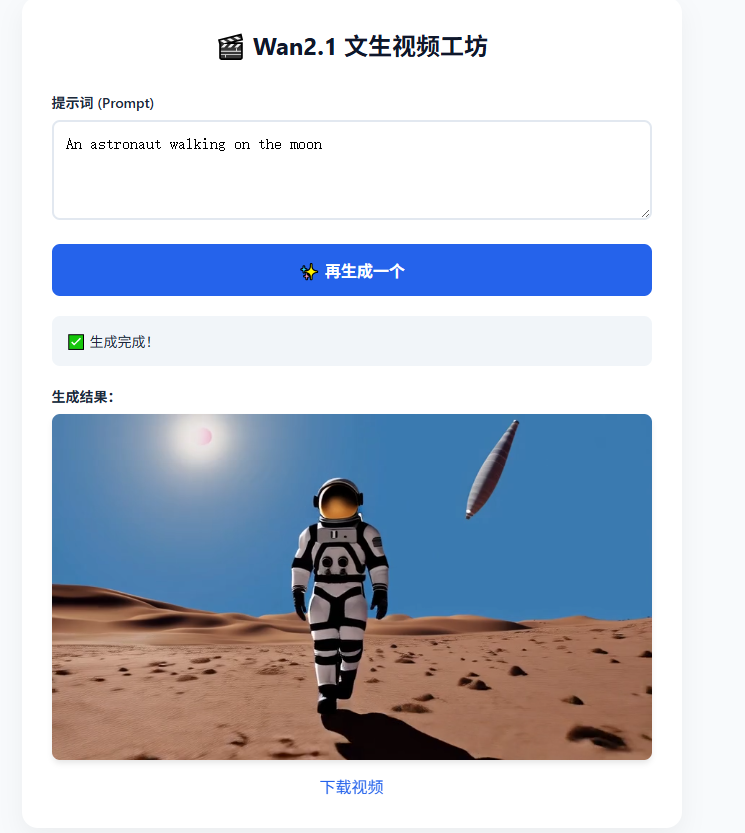
🎉 最终效果
现在,打开您的浏览器,访问: http://[您的服务器IP]:9000
您将看到一个简洁的 AI 视频生成页面。输入提示词,点击生成,喝口水,视频就出来了!
🔧 运维小贴士
- 我要修改视频时长/步数怎么办?
- 在 ComfyUI 浏览器界面修改参数。
- 重新导出
t2v_api.json并覆盖服务器上的文件。 screen -r fastapi->Ctrl+C->python api_server.py(重启 FastAPI 才能加载新配置)。
- 视频无法播放? 请检查
api_server.py中的PUBLIC_FACING_URL是否填写了正确的公网 IP。